The goal of this week was to write an application that interfaces a user with an
input and/or output device that I made.
Building on the BLE node from last week (my ESP32 “Magic Eight Ball Earring”), I wrote a small
browser-based application using Web Bluetooth. The application lets a user:
connect to the earring over BLE,
send a request (a command write),
receive the earring’s response (notifications),
and display that response on the web page.
In other words: last week was about making the networked node; this week is about making the
user-facing software that controls it.
I also compared several application-layer tools (Serial Monitor, LightBlue, Web Bluetooth)
to understand their tradeoffs and choose the best interface for a user-facing application.
Group Assignment: Comparing Application & Networking Tools
For the group assignment, we compared multiple tools for interacting with and controlling
a BLE-enabled embedded device, focusing on ease of use, visibility into data, and suitability
for user-facing applications.
Tool
Platform
Strengths
Limitations
Arduino Serial Monitor
Desktop
Reliable debugging, direct firmware feedback
Not user-facing; requires USB connection
LightBlue
macOS / iOS
Excellent BLE inspection; easy manual writes
Not customizable; not a real application
Web Bluetooth (Chrome)
Browser
No install; full UI control; real application layer
Limited browser support (no Safari)
Command-line BLE tools
Terminal
Powerful, scriptable
Steep setup; poor UX
Based on this comparison, Web Bluetooth was the best fit for this project because it enables
a real user-facing application while still exposing low-level BLE control.
Trying Web Bluetooth
My first question was: can I interact with my BLE device directly from a web page?
I started by trying an existing demo page:
https://webbluetoothcg.github.io/demos/
This bugged for me, and I briefly considered using command-line tools. On macOS, that usually means extra
setup and developer tooling (like bluetoothctl), so I decided to focus on building a small
Web Bluetooth app instead.
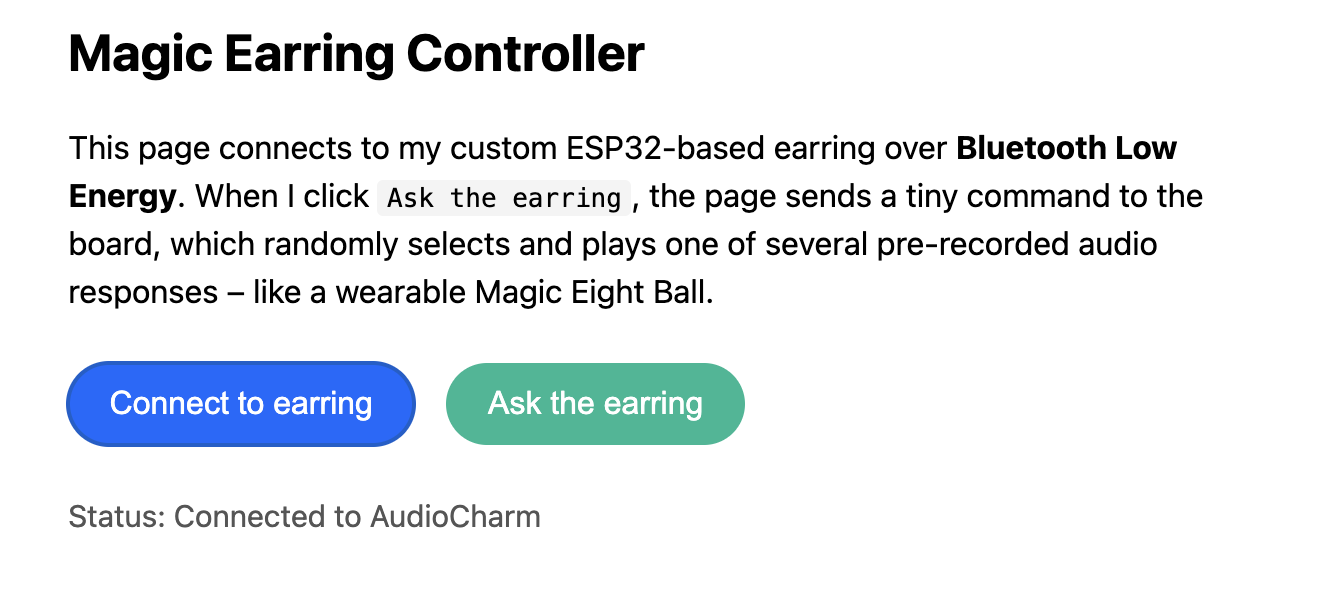
The plan was to make a minimal webpage with two buttons:
Connect (choose the BLE device + connect to its service/characteristic)
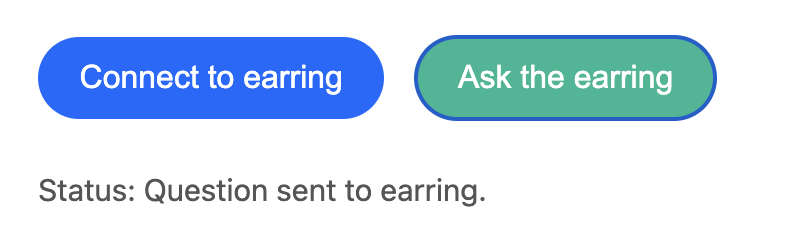
Ask (write a command + display the response)
Serving the Web Page
I created magic_earring.html and served it locally using Python so the browser could load the page
like a real website:
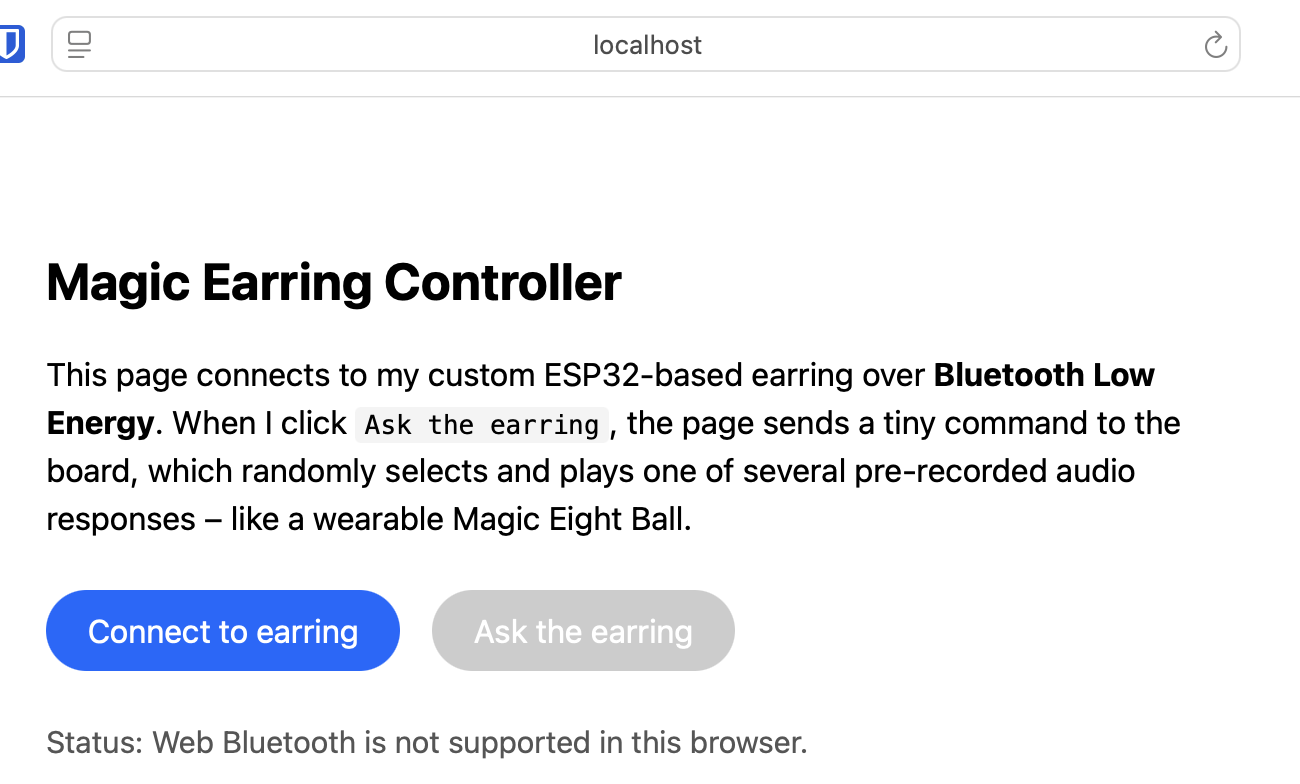
First gotcha: Safari does not support Web Bluetooth, so it was time to switch browsers.
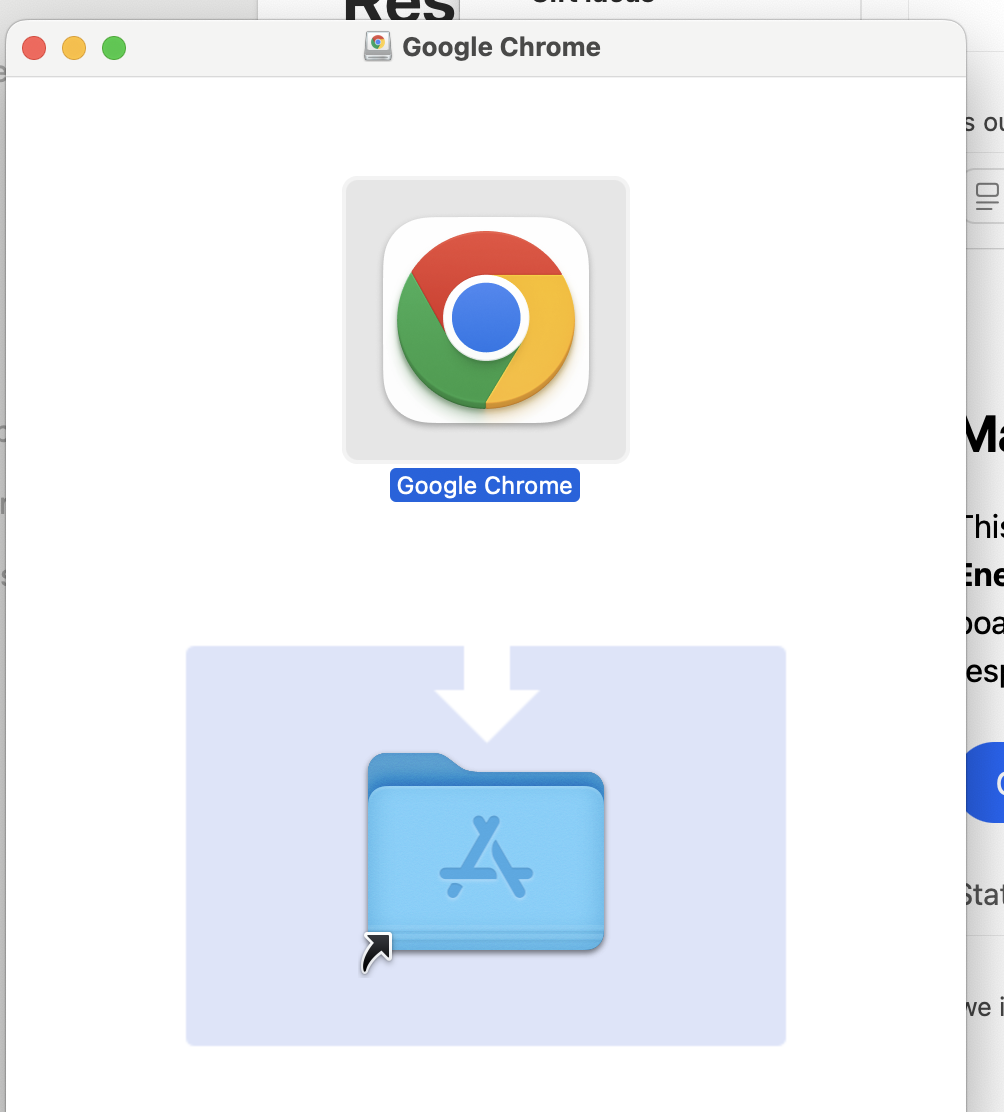
So, I installed Chrome to test this out.
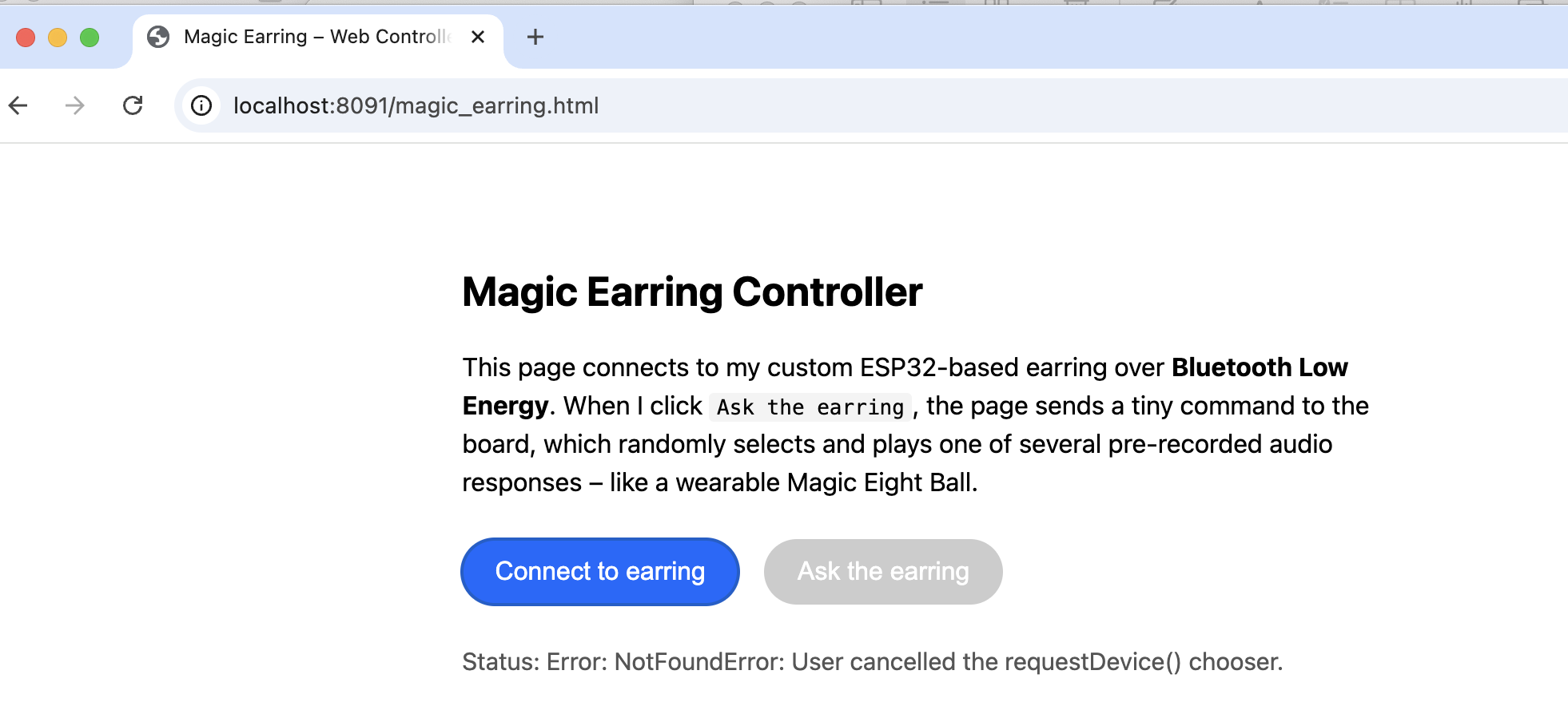
At first, there was another error:
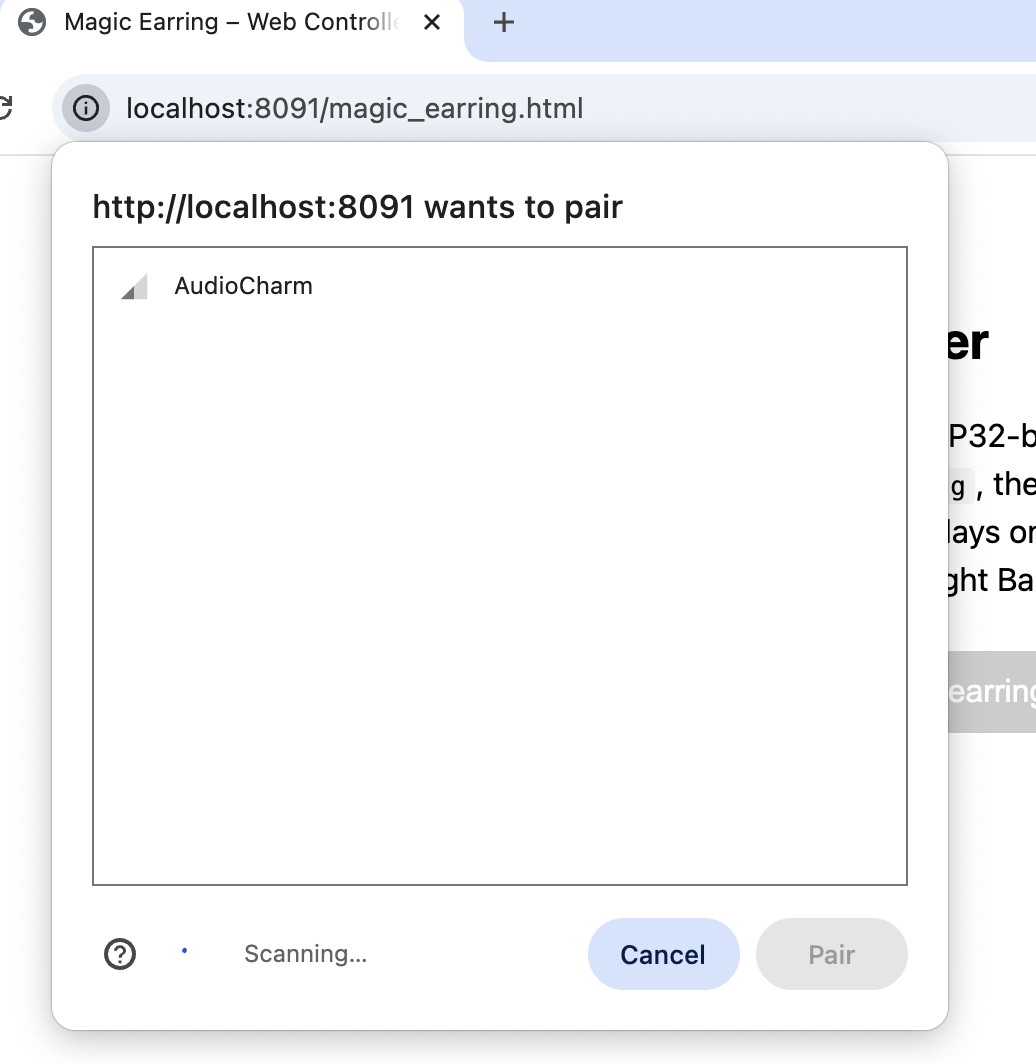
But then it seemed to work:
Connecting to the Earring
The first feature of the app is “Connect”. Under the hood, this uses Web Bluetooth to:
prompt the user to select the device (the earring),
connect to the device’s GATT server,
get the custom BLE service and characteristic.
Here is the core connection logic (simplified):
// 1) Ask the user to select a BLE device
const device = await navigator.bluetooth.requestDevice({
  filters: [{ name: "AudioCharm" }],
  optionalServices: [SERVICE_UUID],
});

// 2) Connect to GATT
const server = await device.gatt.connect();

// 3) Get service + characteristic
const service = await server.getPrimaryService(SERVICE_UUID);
const characteristic = await service.getCharacteristic(CHARACTERISTIC_UUID);
WOOHOOO we are connected!!
Sending a Command
Once connected, the second feature is “Ask the earring”. Pressing the button writes a single-byte command to the
earring’s characteristic. This matches the one-byte protocol I used on the ESP32 side.
Example write:
// Write a one-byte command (e.g., 1)
const cmd = new Uint8Array([1]);
await characteristic.writeValue(cmd);
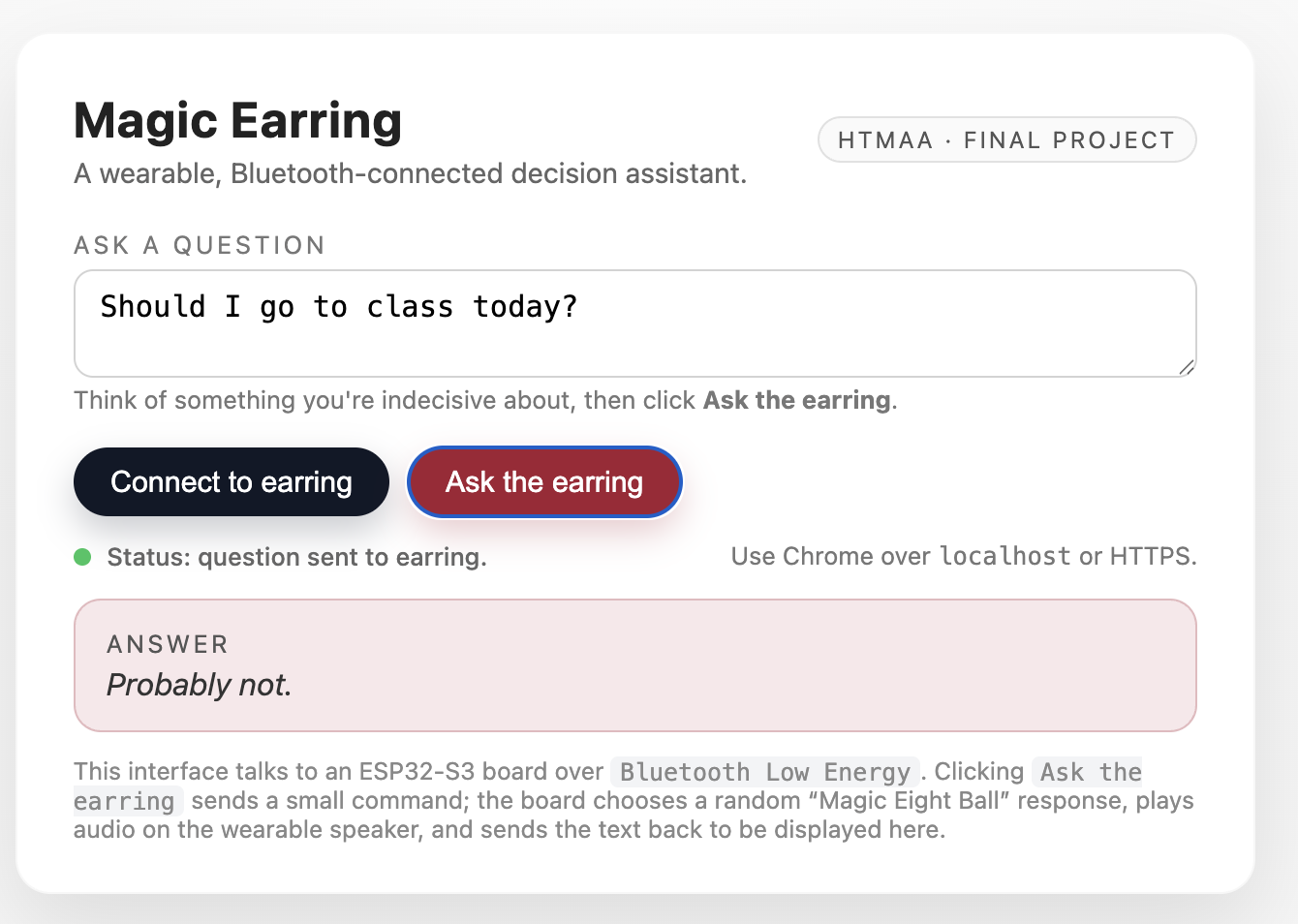
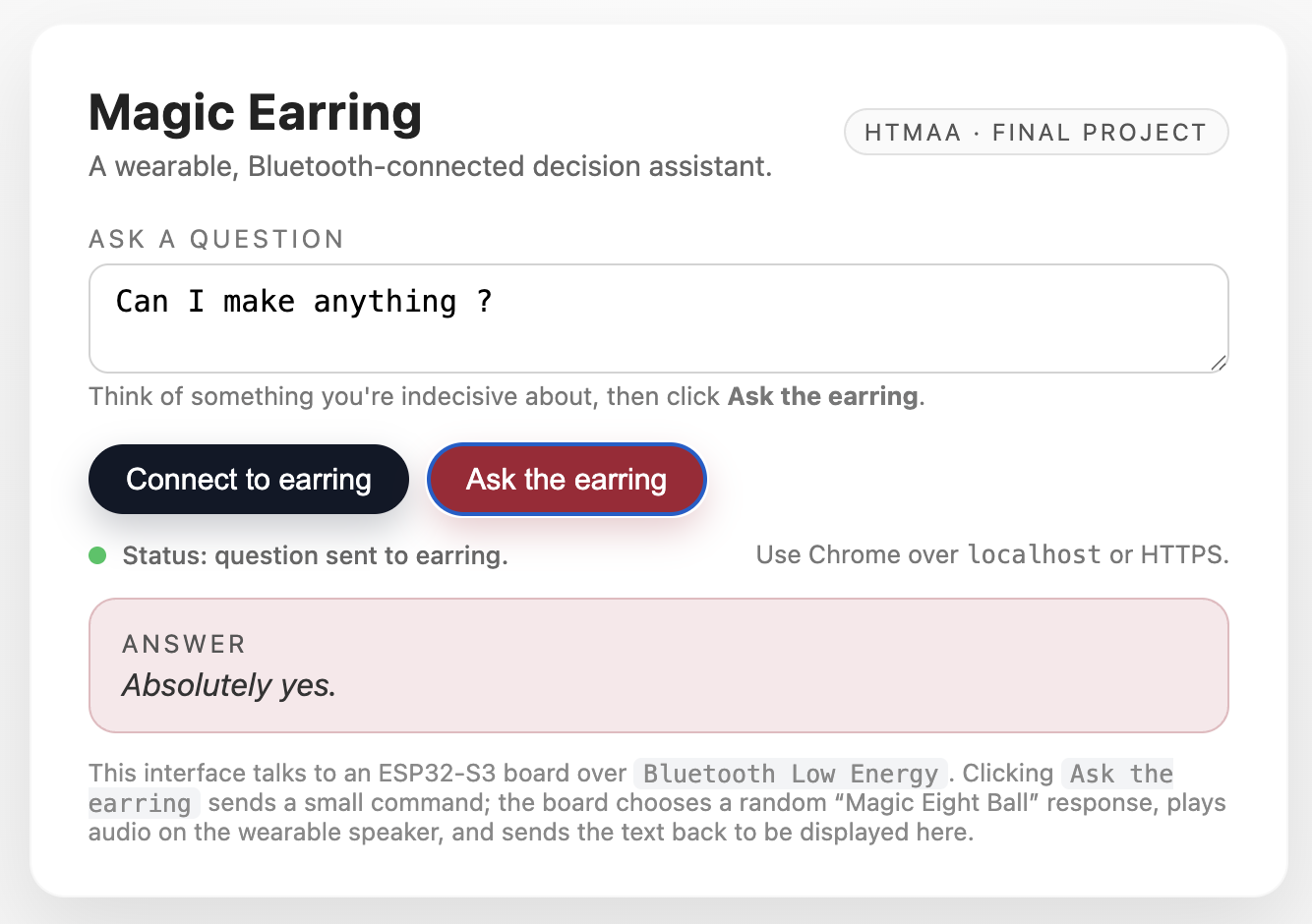
After the write, the ESP32 selects a Magic Eight Ball response, displays it locally on the OLED, and also notifies
the client with the response text.
Receiving the Answer (Notifications)
To display the response on the web page, the app subscribes to BLE notifications. The characteristic is configured
with NOTIFY on the ESP32 side, and on the web side I start notifications and add an event listener.
// Start notifications
await characteristic.startNotifications();

// Listen for updates
characteristic.addEventListener("characteristicvaluechanged", (event) => {
  const value = event.target.value;

  // Decode UTF-8 bytes into a string
  const decoder = new TextDecoder("utf-8");
  const msg = decoder.decode(value);

  // Update the UI
  document.getElementById("answer").textContent = msg;
});
This is the piece that makes the app feel interactive: the earring “talks back” and the user sees the response
immediately in the browser.
UI Improvements
After the basic functionality worked, I improved the interface to make it feel more like a real Magic Eight Ball:
I added a text input field for the question and cleaned up the layout.
Files
Web app:magic_earring.html (Web Bluetooth connect + write + notify + UI)
Local server:python -m http.server 8091
Related firmware (from Week 12): ESP32 BLE service/characteristic with WRITE + NOTIFY
The full Web Bluetooth application lives in the
application/ folder.