With it being Thanksgiving this week, I was not particularly excessive with this week's assignment. I am keeping it simple, and allowing for adjustments as my final project will need more components eventually.
So, I am continuing with my crazy mess that I made in output devices week. However, somewhere during the 6 hour drive home, I think some of my wires maybe got disconnected to my motor / the battery died / something else, so the motor stopped working. However, the distance sensor and OLED screen survived!! So I centered my application around that. (i am getting improved motors for the final project anyway)
I used ChatGPT for most of this actually, so here is my conversation. I have no experience using python, but I tried to learn and understand how I can change things in the future. To do this assignment, my application was written in Python in VSCode, using pyserial to communicate with the SAMD21 and tkinter to build the interface. I also used new code in Arduino that listens for the commands On, Off, and Ping, and sends distance data back.
Here is my python file: tof_gui.py Here is my Arduino code for my VL53L0X sensor and my OLED screen:
#include
#include
#include

// ---- OLED ----
#define SCREEN_WIDTH 128
#define SCREEN_HEIGHT 64
#define OLED_ADDR 0x3C
Adafruit_SSD1306 display(SCREEN_WIDTH, SCREEN_HEIGHT, &Wire, -1);

// ---- VL53L5CX ----
#include   // SparkFun VL53L5CX Arduino Library
SparkFun_VL53L5CX myImager;

// Optional: shutdown pin if you wired LPn to a GPIO; else set to -1 and pull LPn HIGH in hardware
const int LPN_PIN = -1;

// ---- State ----
bool sensorOn = false;       // controlled by serial "ON"/"OFF"
bool sensorReady = false;    // set true once sensor is initialized
bool lastSensorOn = false;   // to know when state changed for OLED

// For serial command parsing
String serialBuffer;

// ---- Helpers ----

void drawStatusScreen(const __FlashStringHelper *line1,
                      const __FlashStringHelper *line2) {
  display.clearDisplay();
  display.setTextColor(SSD1306_WHITE);

  display.setTextSize(1);
  display.setCursor(0, 0);
  display.println(line1);

  display.setCursor(0, 16);
  display.println(line2);

  display.display();
}

// Draw the distance bar + value
void drawDistance(float cm, bool valid) {
  display.clearDisplay();
  display.setTextColor(SSD1306_WHITE);

  display.setTextSize(1);
  display.setCursor(0, 0);
  display.println(F("VL53L5CX Center (cm)"));

  if (!valid) {
    display.setTextSize(2);
    display.setCursor(0, 18);
    display.println(F("No data"));
    display.display();
    return;
  }

  display.setTextSize(2);
  display.setCursor(0, 18);
  display.print(cm, 1);
  display.println(F(" cm"));

  // Progress bar 0–200 cm
  float v = cm;
  if (v < 0) v = 0;
  if (v > 200) v = 200;
  int w = map((int)(v * 10), 0, 2000, 0, SCREEN_WIDTH);
  display.drawRect(0, 44, SCREEN_WIDTH, 14, SSD1306_WHITE);
  display.fillRect(0, 44, w, 14, SSD1306_WHITE);

  display.display();
}

void i2cScanOnce() {
  Serial.println(F("Scanning I2C..."));
  for (uint8_t addr = 1; addr < 127; addr++) {
    Wire.beginTransmission(addr);
    if (Wire.endTransmission() == 0) {
      Serial.print(F("Found 0x"));
      Serial.println(addr, HEX);
    }
  }
}

// ---- Serial command handling ----

void processCommand(const String &cmd) {
  if (cmd.equalsIgnoreCase("ON")) {
    if (!sensorOn && sensorReady) {
      sensorOn = true;
      myImager.startRanging();
    }
    Serial.println(F("ACK:ON"));
    drawStatusScreen(F("Sensor ON"), F("Measuring..."));
  }
  else if (cmd.equalsIgnoreCase("OFF")) {
    if (sensorOn && sensorReady) {
      sensorOn = false;
      myImager.stopRanging();
    }
    Serial.println(F("ACK:OFF"));
    drawStatusScreen(F("Sensor OFF"), F("Send ON to start"));
  }
  else if (cmd.equalsIgnoreCase("PING")) {
    Serial.println(F("PONG"));
  }
  else {
    Serial.print(F("ERR:UNKNOWN_CMD "));
    Serial.println(cmd);
  }
}

void handleSerial() {
  while (Serial.available()) {
    char c = Serial.read();
    if (c == '\r' || c == '\n') {
      if (serialBuffer.length() > 0) {
        serialBuffer.trim();
        processCommand(serialBuffer);
        serialBuffer = "";
      }
    } else {
      if (serialBuffer.length() < 32) {
        serialBuffer += c;
      }
    }
  }
}

// ---- Setup & Loop ----

void setup() {
  Serial.begin(115200);
  uint32_t t0 = millis();
  while (!Serial && millis() - t0 < 1500) {
    // Wait for USB on SAMD21 (up to ~1.5s)
  }

  if (LPN_PIN >= 0) {
    pinMode(LPN_PIN, OUTPUT);
    digitalWrite(LPN_PIN, HIGH); // keep sensor awake
  }

  Wire.begin();             // XIAO SAMD21: D4=SDA, D5=SCL
  Wire.setClock(400000);    // VL53L5CX handles 400kHz

  // OLED init
  if (!display.begin(SSD1306_SWITCHCAPVCC, OLED_ADDR)) {
    Serial.println(F("SSD1306 init failed"));
    while (1) { delay(10); }
  }
  display.clearDisplay();
  display.setTextSize(1);
  display.setTextColor(SSD1306_WHITE);
  display.setCursor(0, 0);
  display.println(F("Init VL53L5CX..."));
  display.display();

  // Quick scan to verify address (should see 0x29 for VL53L5CX and 0x3C for OLED)
  i2cScanOnce();

  // Sensor init
  if (!myImager.begin()) {
    Serial.println(F("VL53L5CX init FAILED. Check wiring/LPn/I2C."));
    display.setCursor(0, 12);
    display.println(F("Sensor init FAIL"));
    display.display();
    while (1) { delay(10); }
  }

  // Configure sensor: 8x8 @ 15 Hz is a good start
  myImager.setResolution(VL53L5CX_RESOLUTION_8X8);    // 64 zones
  myImager.setRangingFrequency(15);                   // Hz (1..60, depends on resolution)
  // Optional: myImager.setIntegrationTime(5);        // ms (0=auto)

  sensorReady = true;
  sensorOn = false;
  lastSensorOn = sensorOn;

  drawStatusScreen(F("READY"), F("Send 'ON' over USB"));
  Serial.println(F("READY"));
}

void loop() {
  // 1) Always handle incoming serial commands
  handleSerial();

  // 2) If sensorOn just changed, update OLED once
  if (sensorOn != lastSensorOn) {
    if (sensorOn) {
      drawStatusScreen(F("Sensor ON"), F("Measuring..."));
      myImager.startRanging();
    } else {
      drawStatusScreen(F("Sensor OFF"), F("Send ON to start"));
      myImager.stopRanging();
    }
    lastSensorOn = sensorOn;
  }

  // 3) If sensor is ON, read frames and output DIST:
  if (sensorOn && sensorReady) {
    VL53L5CX_ResultsData measurement; // contains .distance_mm[64]

    if (myImager.isDataReady()) {
      if (myImager.getRangingData(&measurement)) {
        // center 2x2 block in 8x8 grid
        const int idx33 = 3 * 8 + 3;
        const int idx34 = 3 * 8 + 4;
        const int idx43 = 4 * 8 + 3;
        const int idx44 = 4 * 8 + 4;

        uint16_t d33 = measurement.distance_mm[idx33];
        uint16_t d34 = measurement.distance_mm[idx34];
        uint16_t d43 = measurement.distance_mm[idx43];
        uint16_t d44 = measurement.distance_mm[idx44];

        uint32_t sum = 0;
        int count = 0;
        uint16_t vals[4] = { d33, d34, d43, d44 };
        for (int i = 0; i < 4; i++) {
          if (vals[i] > 0 && vals[i] < 4000) {
            sum += vals[i];
            count++;
          }
        }

        bool valid = (count > 0);
        float cm = valid ? (sum / (float)count) / 10.0f : 0.0f;

        if (valid) {
    // Output in the format your Python app expects
    Serial.print(F("DIST:"));
    Serial.println(cm, 1);

    // ---- Threshold check ----
    if (cm <= 2.0) {
        Serial.println(F("tentacle grab!!!"));
    }

} else {
    Serial.println(F("DIST:NaN"));
}


        // Update OLED
        drawDistance(cm, valid);
      }
    }
  }

  delay(5);  // modest loop pace
}
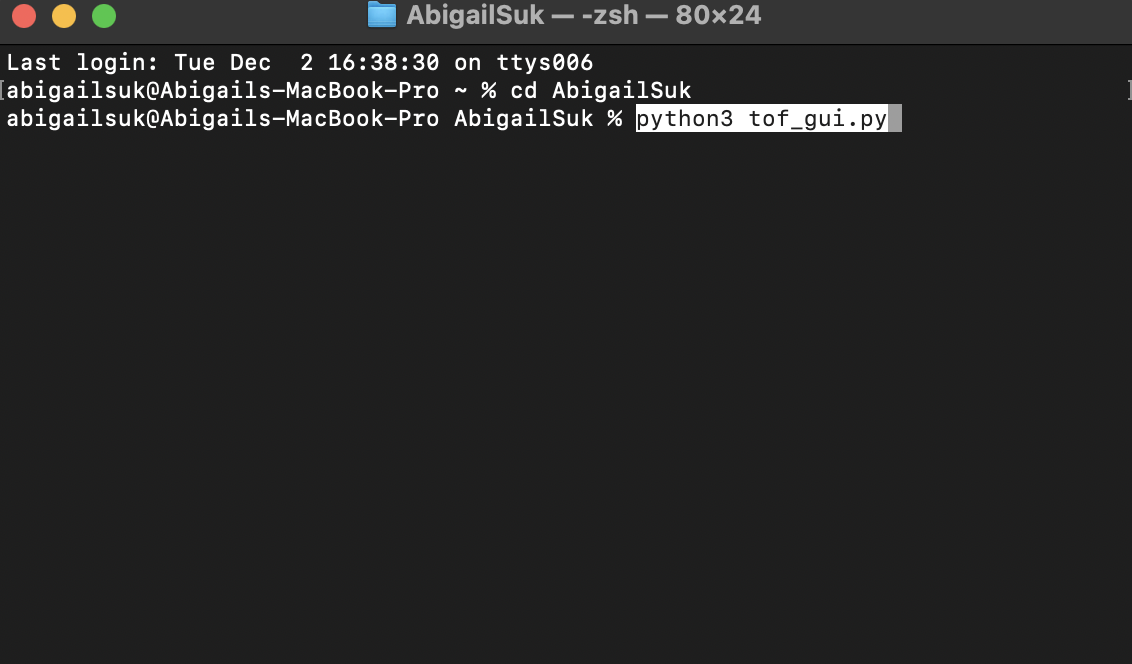
I then ran my python through VSCode and launched the interface in terminal.
And it looked like this:
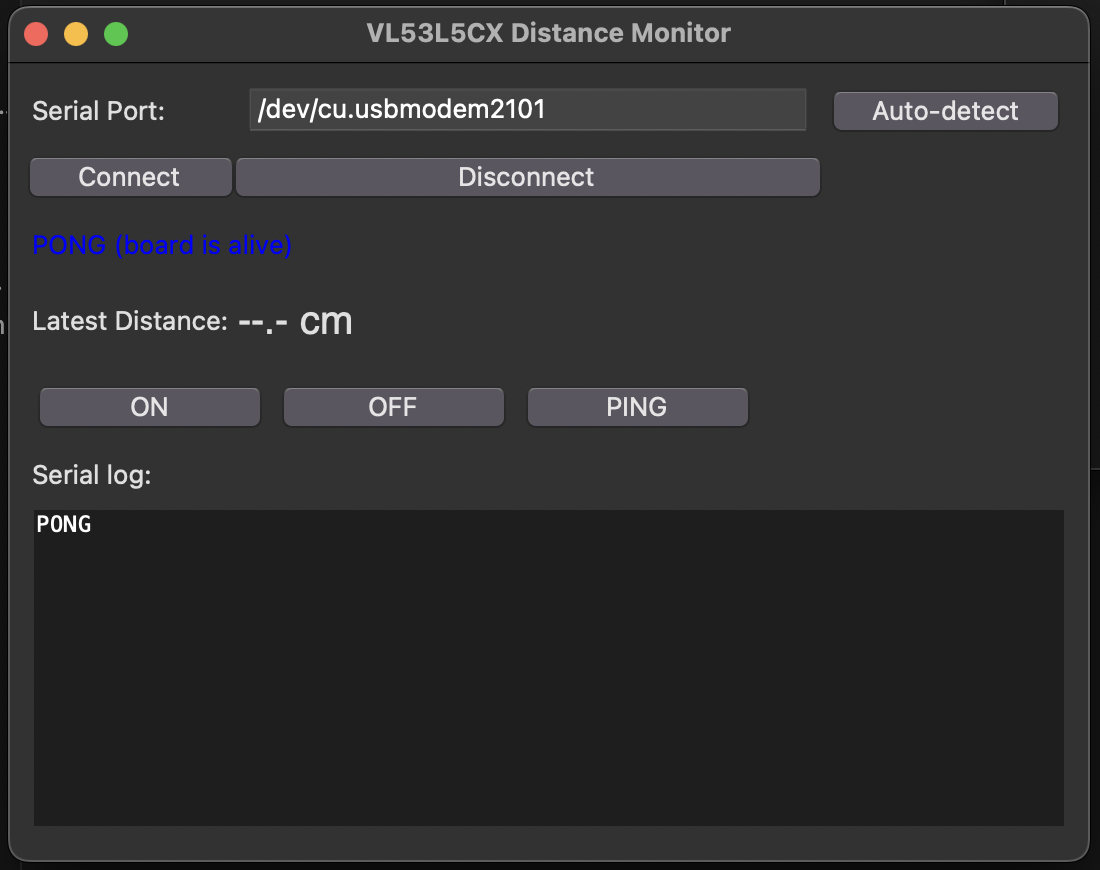
It has a place to input what port to use (which defaults to the debug console for some reason even though I tried to change it), connect / disconnect buttons, a distance reading, and ON, OFF, and PING buttons.
Here is a video of how it works!
Then, I wanted to change how it looked a bit, so I decided to add my logo and name at the top.
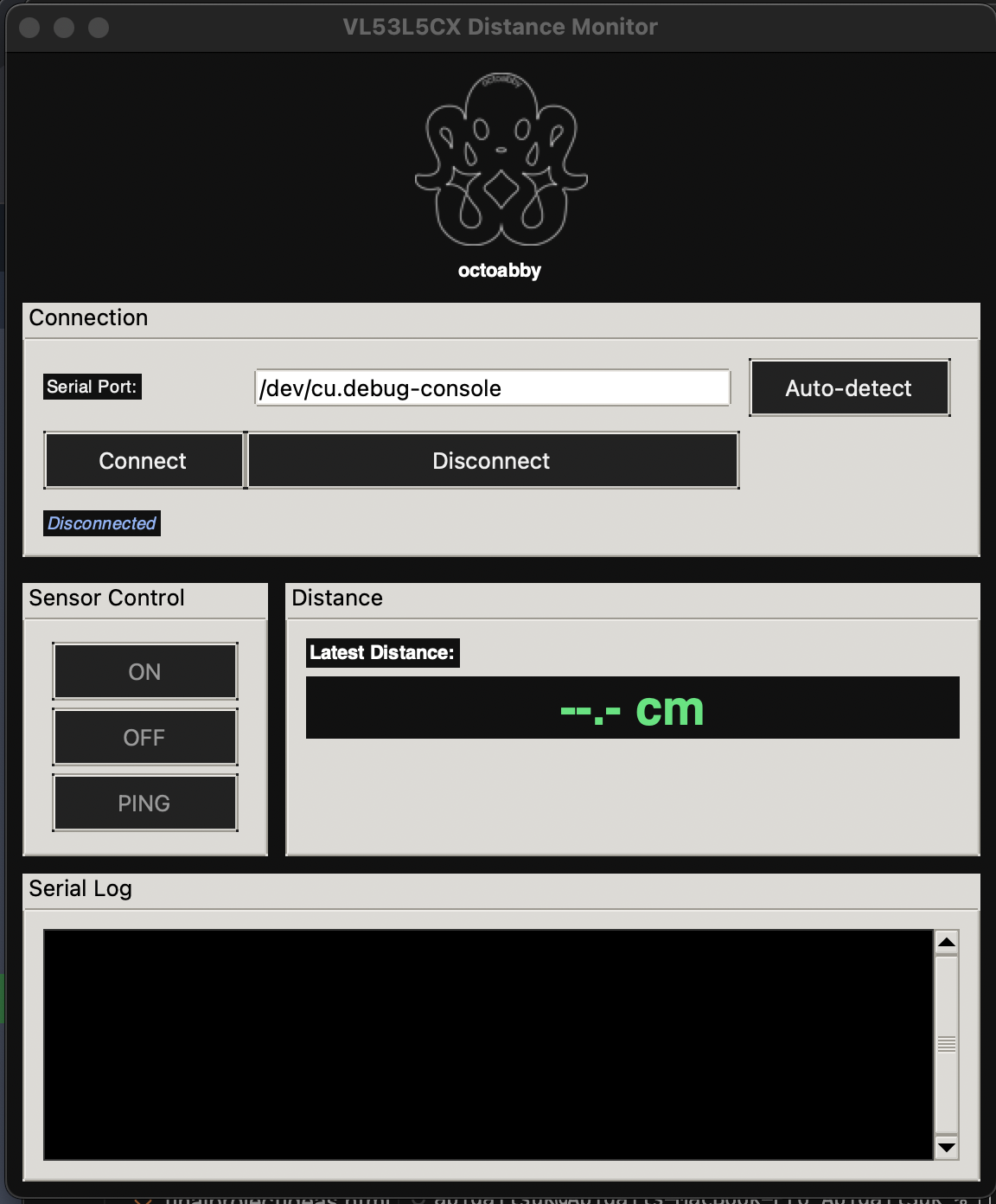
I also wanted it to recognize when something is 2cm away, which for my final project, will activate the tentacles, so I wrote in a little part to say "tentacle grab!!!".
So that was application week! I definitely plan on adding more components for my final project, such as controls for my motors and potentially for a speaker.