Week 13

Interface and Application Programming

Introduction

For this week's assignment, I created multiple user interfaces that allow interaction with my Hydration Monitor Robot system. The interfaces bridge the gap between humans and embedded hardware, enabling users to:

  • Monitor real-time water consumption data via smartphone
  • Control and test the system remotely through BLE commands
  • Receive visual feedback through an expressive robot face display

🔗 Connection to Final Project

This week's work is deeply integrated with my Final Project: Hydration Monitor Robot. The interfaces I developed here form the core user interaction layer of that system.

For complete hardware details, system architecture, and CAD models, see the Final Project page. This page focuses specifically on the interface and application programming aspects.

Three Interface Layers

My system provides three distinct ways for users to interact with the hardware:

📱 Phone Application

Generic BLE apps (nRF Connect, LightBlue) provide a direct interface to read sensor data and send control commands wirelessly.

🤖 Robot Display

The TFT display acts as a visual interface, translating numerical data into emotional expressions that users can understand at a glance.

💻 Serial Terminal

Command-line interface via USB serial allows developers to calibrate, debug, and configure the system.

Interface System Overview

User-Centered Design Philosophy

I designed the interfaces with different user personas in mind:

User Type Interface Primary Use Case
Daily User Robot Display Quick glance at hydration status without picking up phone
Power User Phone App Detailed data monitoring, testing, and remote control
Developer Serial Terminal Calibration, debugging, firmware updates

Data Flow Through Interfaces

┌─────────────────┐
│  Load Cell      │ ← Input Device (Week 8)
│  Water Bottle   │
└────────┬────────┘
         │ Weight Data
         ↓
┌─────────────────┐
│  ESP32 Server   │ ← Processes & Broadcasts
│  (BLE)          │
└────┬────────┬───┘
     │        │
     │        └──────────────────┐
     ↓                           ↓
┌─────────────────┐    ┌─────────────────┐
│  Phone App      │    │  Robot Display  │ ← Output Device (Week 9)
│  (nRF Connect)  │    │  (TFT Screen)   │
└─────────────────┘    └─────────────────┘
     ↓                           ↓
┌─────────────────┐    ┌─────────────────┐
│  Human reads    │    │  Human sees     │
│  numbers/charts │    │  emotions 😊😐😢 │
└─────────────────┘    └─────────────────┘
     ↑
     │ Control Commands
     │ (Test Mode, etc.)
     │
┌─────────────────┐
│  User Input     │ ← Application Programming (Week 13)
└─────────────────┘

✨ Interface Design Principles Applied

  • Feedback: Every user action receives immediate visual/data feedback
  • Visibility: Current system state is always clear (connected/disconnected, hydration level)
  • Affordance: Buttons and characteristics clearly indicate what they do
  • Error Prevention: Invalid commands are rejected with helpful error messages
  • Consistency: Same data format and commands across all interfaces

Phone Application Interface

Using Generic BLE Apps

Rather than developing a custom smartphone app from scratch (which would require iOS/Android development), I leveraged existing professional BLE debugging tools that provide a powerful interface to my hardware:

iOS

LightBlue Explorer

Professional BLE debugging tool

Android

nRF Connect

Nordic Semiconductor's official app

Connecting to the Device

Step-by-step guide to connect your phone to the Water Bottle Scale:

  1. Open nRF Connect (Android) or LightBlue (iOS)
  2. Tap "SCAN" to search for nearby BLE devices
  3. Look for device named "WaterBottle" in the list
  4. Tap "CONNECT" next to the device name
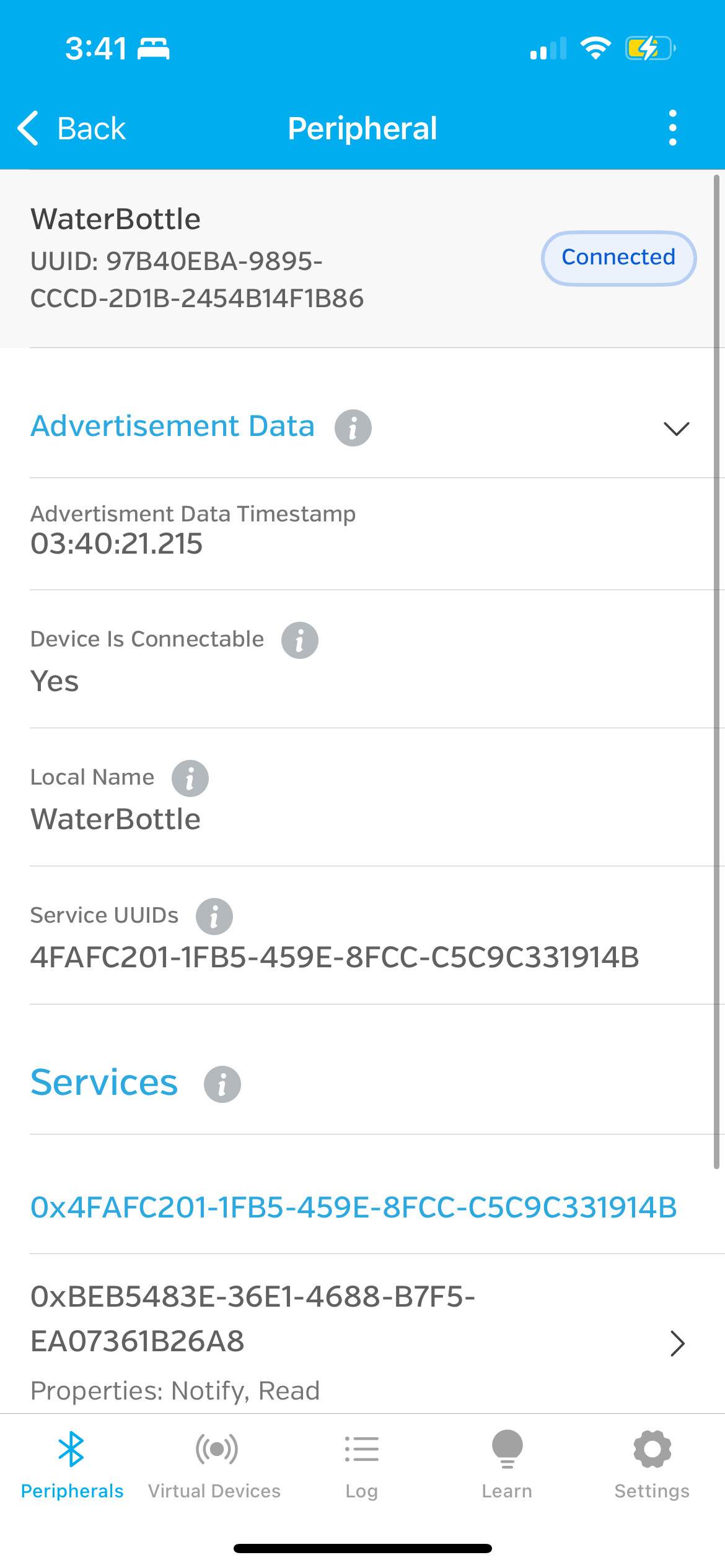
  5. Once connected, you'll see the service UUID: 4fafc201-1fb5-459e...
  6. Tap to expand and view all four characteristics
Phone scanning for BLE devices
nRF Connect scanning and discovering "WaterBottle" device
Phone connected to BLE device Phone showing active BLE connection to WaterBottle device

Reading Data Characteristics

The app interface displays four BLE characteristics. To view real-time data:

📊 Available Data Characteristics

1. Current Weight ...26a8
  • Tap the "↓" down arrow to read once
  • Tap the notification icon (triple lines) to subscribe for continuous updates
  • Data format: String (e.g., "547.3" grams)
  • Update rate: Every 1 second
2. Water Consumed ...26a9
  • Shows how much water you've drunk since last fill
  • Data format: String in grams (e.g., "453.2")
  • Can convert to ounces: divide by 28.35
3. Percentage Remaining ...26aa
  • Most important for quick glance: 0-100%
  • This drives the robot face emotion!
  • 60-100% = Happy, 30-59% = Neutral, 0-29% = Sad
4. Control Commands ...26ab
  • Bidirectional: Read responses AND write commands
  • Write single characters to control the system
  • Subscribe to notifications to see command confirmations
Phone showing characteristics
Expanded service showing all four characteristics with real-time data

Data Visualization

The apps automatically convert hex data to human-readable formats:

Viewing Options:
  • HEX: Raw bytes (e.g., 35 34 37 2E 33)
  • UTF-8: Text string (e.g., "547.3") ← Use this!
  • Decimal: Byte values

💡 Pro Tip: Always switch to UTF-8 view to see readable numbers instead of hex bytes!

Different data format views
Same data shown in HEX vs UTF-8 format - UTF-8 is much more readable!

BLE Protocol Design

Why Bluetooth Low Energy?

I chose BLE as the communication protocol for several reasons:

  • Universal compatibility: Every modern smartphone has BLE built-in
  • No pairing required: Users can connect instantly without entering codes
  • Low power consumption: Critical for battery-operated devices
  • Real-time notifications: Push data to connected clients automatically
  • Multiple connections: Phone AND robot display can connect simultaneously
  • Industry standard: Well-documented with robust libraries

Service & Characteristics Architecture

BLE uses a hierarchical structure of Services and Characteristics. I designed my protocol to be intuitive and extensible:

📡 BLE Device: "WaterBottle"
│
└── 📦 Service: Hydration Monitor
    UUID: 4fafc201-1fb5-459e-8fcc-c5c9c331914b
    │
    ├── 📊 Characteristic: Current Weight
    │   UUID: beb5483e-36e1-4688-b7f5-ea07361b26a8
    │   Properties: READ, NOTIFY
    │   Data: String (grams)
    │
    ├── 💧 Characteristic: Water Consumed
    │   UUID: beb5483e-36e1-4688-b7f5-ea07361b26a9
    │   Properties: READ, NOTIFY
    │   Data: String (grams)
    │
    ├── 📈 Characteristic: Percentage Remaining
    │   UUID: beb5483e-36e1-4688-b7f5-ea07361b26aa
    │   Properties: READ, NOTIFY
    │   Data: String (0-100)
    │
    └── 🎛️ Characteristic: Control Commands
        UUID: beb5483e-36e1-4688-b7f5-ea07361b26ab
        Properties: READ, WRITE, NOTIFY
        Data: String (single char commands)

💡 Design Decision: UUIDs

Notice how the UUIDs are almost identical except for the last two digits (a8, a9, aa, ab)? This makes them easy to identify in BLE scanning tools while maintaining uniqueness. The base UUID was generated randomly to avoid conflicts with other BLE devices.

Notification vs Polling

BLE supports two ways to get data from devices:

Method How It Works Best For
Polling (READ) App requests data on demand One-time checks, debugging
Notifications (NOTIFY) Device pushes updates automatically Real-time monitoring, live data

My system uses notifications by default, pushing updates every 1 second to all subscribed clients. This is more efficient than having the phone constantly poll for new data.

Firmware Implementation

Here's how the BLE server broadcasts data in the ESP32 firmware:

// Called every 1 second in main loop
void updateBLE() {
  // Format current weight as string
  String currentStr = String(currentWeight, 1);
  pCharCurrent->setValue(currentStr.c_str());
  pCharCurrent->notify();  // Push to all subscribers
  
  // Format water consumed
  String consumedStr = String(waterConsumed, 1);
  pCharConsumed->setValue(consumedStr.c_str());
  pCharConsumed->notify();
  
  // Format percentage (integer)
  String percentStr = String(percentRemaining);
  pCharPercent->setValue(percentStr.c_str());
  pCharPercent->notify();
}

For complete BLE server and client implementation details, see the BLE Communication section of my Final Project page.

Remote Control Interface

Writing Commands from Phone

The Control characteristic (...26ab) enables bidirectional communication. Users can send commands to the device wirelessly:

Writing command in app
Writing a command to the Control characteristic in nRF Connect

Available Commands

🎮 Control Commands Reference

Command Action Response
x or X Toggle test mode ON/OFF "Test mode ON" / "Test mode OFF"
0 Set to 100% full (happy face) "Full: 100%"
1 Set to 50% full (neutral face) "Half: 50%"
2 Set to 25% full (sad face) "Low: 25%"
3 Set to 0% empty (sad face) "Empty: 0%"
a or A Toggle auto-cycle mode "Auto: ON" / "Auto: OFF"
t or T Tare the scale (zero it) "Taring..."

How to Send Commands

  1. Navigate to the Control characteristic (...26ab)
  2. Tap the "↑" up arrow (write button)
  3. Select "Text/UTF-8" format (not Hex!)
  4. Type a single character command (e.g., x)
  5. Tap "Send"
  6. If subscribed to notifications, you'll see the response immediately

Command Processing Flow

User types 'x' in phone app
    ↓
Phone sends character via BLE WRITE
    ↓
ESP32 receives in onWrite() callback
    ↓
handleCommand('x') function executes
    ↓
Test mode toggles ON
    ↓
Response "Test mode ON" sent back via NOTIFY
    ↓
Phone app displays confirmation
    ↓
User sees feedback instantly

Firmware Command Handler

void handleCommand(char cmd) {
  Serial.print("BLE Command: ");
  Serial.println(cmd);
  
  switch(cmd) {
    case 'x':
    case 'X':
      if (!testMode) {
        enterTestMode();
      } else {
        testMode = false;
        sendControlResponse("Test mode OFF");
      }
      break;
      
    case '0':
      if (testMode) {
        testState = 0;  // 100% full
        sendControlResponse("Full: 100%");
      }
      break;
      
    // ... more cases ...
  }
}

✨ User Experience Benefits

  • Instant feedback - see response within 100ms
  • No menu navigation - single character commands
  • Works from anywhere in Bluetooth range (~10m)
  • Can test robot emotions without touching hardware
  • Multiple users can connect simultaneously

Testing Demo with Phone

Video demonstration: sending commands from phone and watching robot face respond

Robot Display Interface

Visual Interface Design

While the phone app provides precise numerical data, the robot face offers something more valuable: emotional communication. This interface translates technical measurements into human-understandable emotions.

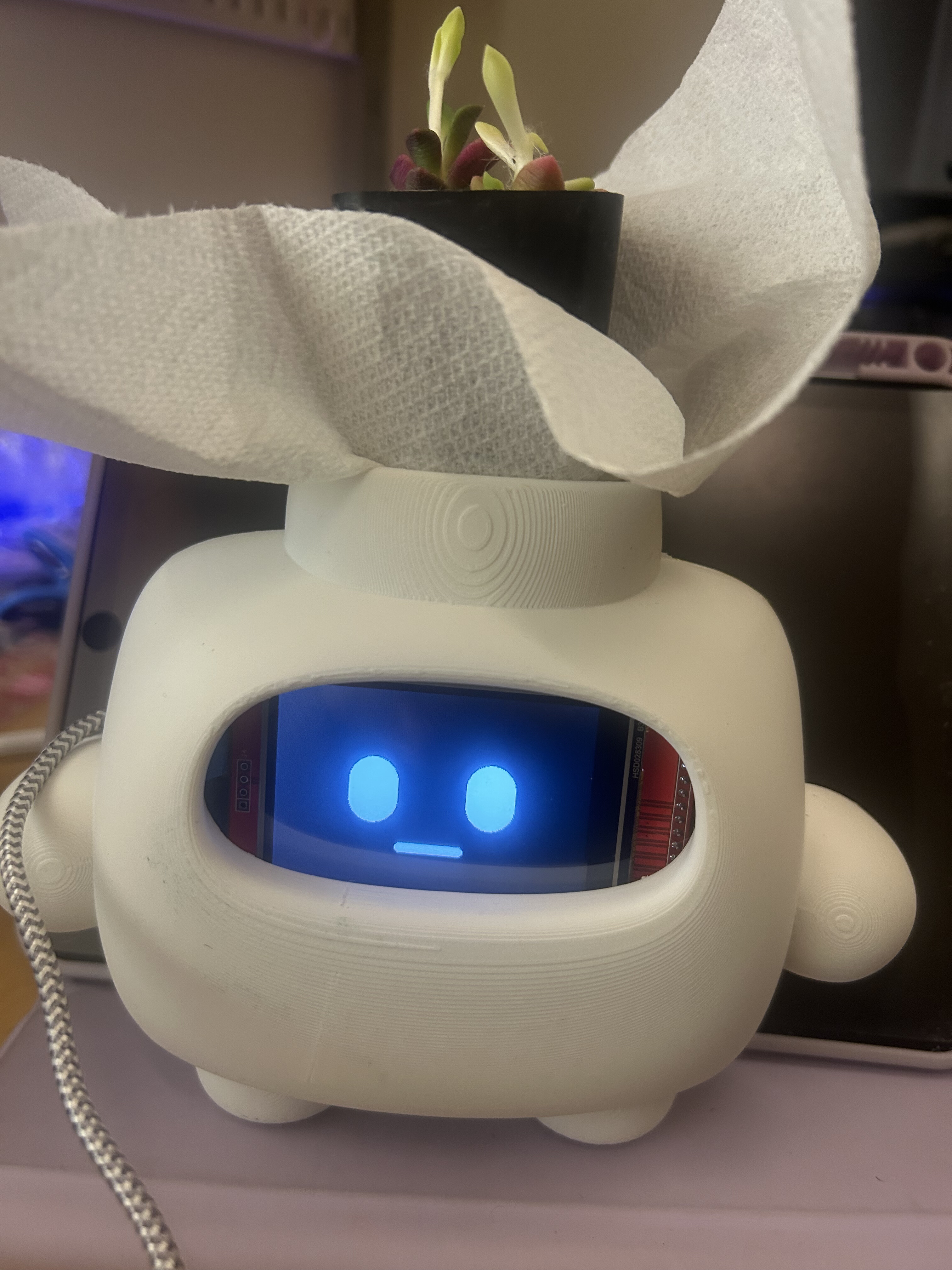
Robot face close-up

🎨 Design Philosophy: Emotion Over Data

Instead of showing "547.3g remaining" which requires mental math, the robot shows a happy face. Users instantly know "I'm doing well!" without thinking about numbers. This emotional interface creates a stronger behavioral connection than raw data.

Interface States

The robot face implements a finite state machine with discrete emotional states:

Emotion Mapping

Water Level Emotion Visual Design User Message
60-100% 😊 Happy Squinted eyes, >U< smile "You're doing great!"
30-59% 😐 Neutral Round eyes, straight mouth "Drink some water soon"
0-29% 😢 Sad Small eyes, frown, tear "REFILL NEEDED!"
Three robot faces
The three emotional states displayed on the TFT screen

Robot Face Animation Demo

Robot face displaying blinking animation that brings the character to life

Animation as Interface Feedback

The blinking animation serves multiple interface purposes:

  • Liveness indicator: Shows system is powered and responsive
  • Personality: Makes the robot feel like a companion, not a machine
  • Attention draw: Periodic movement catches user's eye
  • Natural interaction: Mimics human blinking for relatability

Interface Responsiveness

The display updates with minimal latency to maintain the illusion of a reactive companion:

  • BLE notification → Emotion update: <200ms
  • Face state change: Immediate (single frame redraw)
  • Blink animation: 150ms duration
  • Smooth animation: 60 FPS refresh rate

💡 Interface Design Learning

Initially, I considered showing the exact percentage number on screen. However, user testing (on myself!) showed that the emotional face was far more effective at changing behavior. The face requires zero cognitive load - you glance at it and immediately know if you should drink water. This is the power of ambient interfaces - information conveyed without demanding attention.

For complete technical details on the TFT display programming, see Week 9: Output Devices or the Robot Face section of my Final Project.

Interface Testing & Demonstration

Multi-Interface Integration Test

The ultimate test of interface design: using all three interfaces simultaneously to demonstrate seamless communication:

  1. Setup: Connect phone app to "WaterBottle" device
  2. Setup: Power on robot display (auto-connects to scale)
  3. Test 1: Enable notifications on all characteristics in phone app
  4. Test 2: Write command 'x' to enter test mode
  5. Observe: Control characteristic notifies "Test mode ON"
  6. Test 3: Write command '0' (100% full)
  7. Observe:
    • Phone shows: Percentage = "100"
    • Robot shows: Happy face 😊
  8. Test 4: Write command '1' (50% full)
  9. Observe:
    • Phone shows: Percentage = "50"
    • Robot shows: Neutral face 😐
  10. Test 5: Write command '2' (25% full)
  11. Observe:
    • Phone shows: Percentage = "25"
    • Robot shows: Sad face 😢
  12. Test 6: Write command 'a' for auto-cycle
  13. Observe: System automatically cycles through all states every 5 seconds
Complete demonstration: phone app sending commands while robot face responds in real-time
Robot display changes when load cell device is connected with BLE

Usability Findings

Through self-testing and informal observation, I identified several usability insights:

✅ What Worked Well

  • Robot face was immediately understandable - no explanation needed
  • Single-character commands are fast to type and error-resistant
  • Real-time notifications eliminated need for manual refresh
  • Blinking animation made robot feel alive and engaging
  • UTF-8 text format for data was easier to read than numbers

⚠️ Areas for Improvement

  • Generic BLE apps have cluttered UI - custom app would be cleaner
  • Command reference not visible in app - need to remember commands
  • No way to graph historical data in current interface
  • Connection process requires multiple taps - could be streamlined
  • Robot face only shows current state - no indication of trends

Reflection & Learnings

Interface Design Principles Applied

This project reinforced several key principles of interface design:

1. Multiple Modalities

Different users have different needs. Power users want data, casual users want emotional feedback. Provide both.

2. Immediate Feedback

Every user action should produce visible feedback within 400ms. This maintains the illusion of direct manipulation.

3. Emotional Connection

Abstract data (grams, percentages) doesn't motivate behavior change. Emotional interfaces (happy/sad faces) do.

4. Progressive Disclosure

Robot shows simple emotion at-a-glance. Phone app reveals detailed data when user wants to dig deeper.

Technical Learnings

  • BLE is powerful but complex: Managing connection states, notifications, and callbacks requires careful state machine design
  • Notifications > Polling: Push-based updates are more efficient and feel more responsive than constant polling
  • String encoding matters: UTF-8 is more user-friendly than hex for human-readable data
  • Multiple clients work: BLE supports simultaneous connections, enabling phone + robot display at once
  • Testing is interface design: The test mode I built for debugging became a core feature for demonstrating the interface

Future Interface Enhancements

Given more time, I would improve the interfaces in these ways:

📱 Custom Mobile App

  • Native iOS/Android app with branded UI
  • Historical data charts showing hydration patterns
  • Push notifications as reminders to drink
  • One-tap connection (no BLE scanning required)
  • Achievement system and daily goals

🤖 Robot Display Enhancements

  • Animated transitions between emotions (morphing faces)
  • More emotional states (excited, sleepy, thinking)
  • Mini-graphs showing trend over past hour
  • Customizable characters (let user pick robot style)
  • Text overlay showing exact percentage on demand

🌐 Web Dashboard

  • Web Bluetooth API for browser-based control
  • Long-term data storage and analysis
  • Social features (compare with friends)
  • Export data as CSV for health apps
  • Remote monitoring from anywhere

Closing Thoughts

This assignment reinforced that interface design is not decoration - it's the bridge between human intent and machine capability. The same hardware can be frustrating or delightful depending entirely on how users interact with it.

My favorite realization: the robot face, which I initially thought was just "cute decoration," is actually the most effective interface. It requires zero learning, zero cognitive load, and creates an emotional bond that motivates behavior change. That's the power of thoughtful interface design.

Interface design is empathy made tangible

Every button, notification, and animation should show that you understand and care about your users' needs.

Related Documentation

This week's interface work is closely integrated with other assignments:

📡 Final Project

Complete system documentation including hardware design, BLE protocol, and CAD models for enclosures.

View Final Project →

📺 Week 9: Output Devices

Deep dive into TFT display programming, robot face design, and animation implementation.

View Week 9 →

📥 Week 8: Input Devices

Load cell integration, calibration process, and weight measurement techniques.

View Week 8 →

Download Source Code

All firmware and interface code available for download:

BLE Server Code (.ino) Robot Display Code (.ino)